
Following the recently announced update regarding PSD2 compliance and to ensure compliance with the current regulations, Treatwell will be withholding payments and stopping payouts for Treatwell partners who did not complete the Know-Your-Customers (KYC) process.
Completing the KYC process means enhanced security, as identity verification, similar to what occurs during in-person interactions, is now applied online. As more businesses move online and no longer interact with customers face-to-face, Stripe Identity helps confirm that you are who you claim to be, ensuring a secure and trustworthy environment for all.
For more information on how to complete the KYC verification process, please follow the steps described in the article below.
Treatwell is constantly working to make its services more secure, both for customer and partner data, and for incoming and outgoing payments made through our platforms. Thanks to a recent partnership with Stripe, a leading online payment company, an additional layer of protection against identity theft, fraud and other malicious activity has been introduced.
Therefore, in order to continue using the service, it is necessary to verify your identity by following a few simple steps:
First, click on the 'Verify my identity now”' button on the pop-up window that will appear within the management system. You will then be redirected to the Stripe site to register your data;
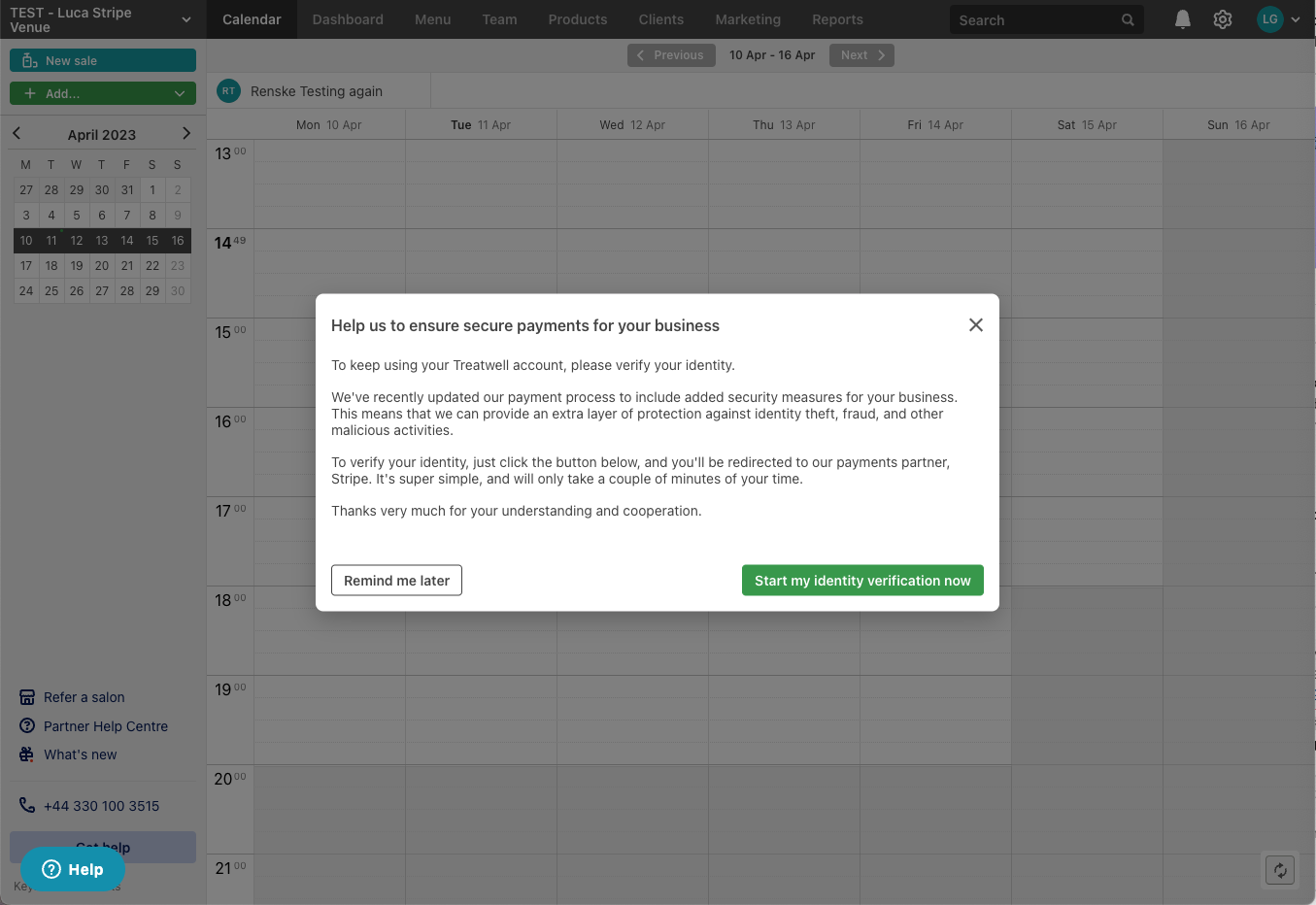
On the registration page, indicate your company type and click on "Continue";
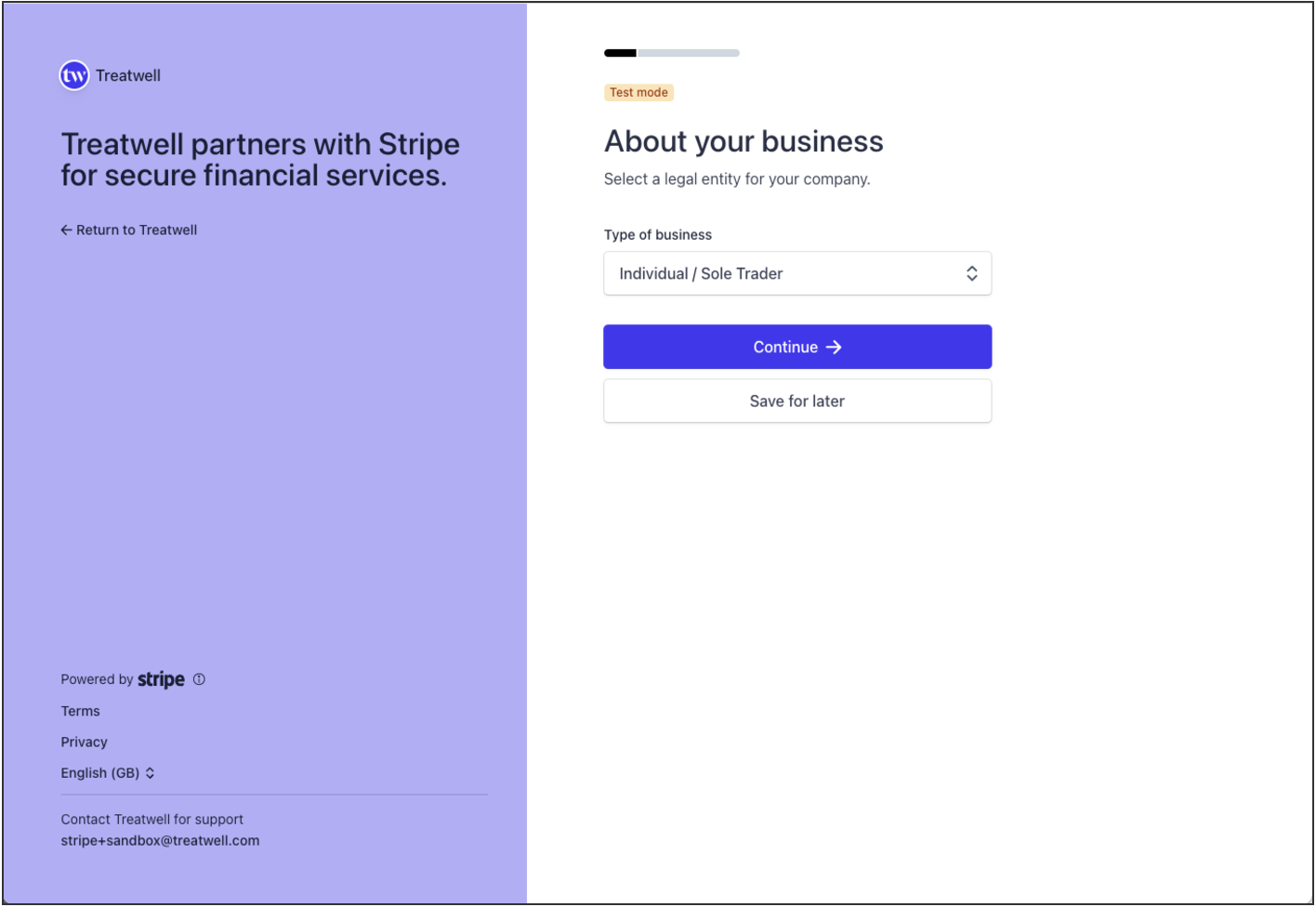
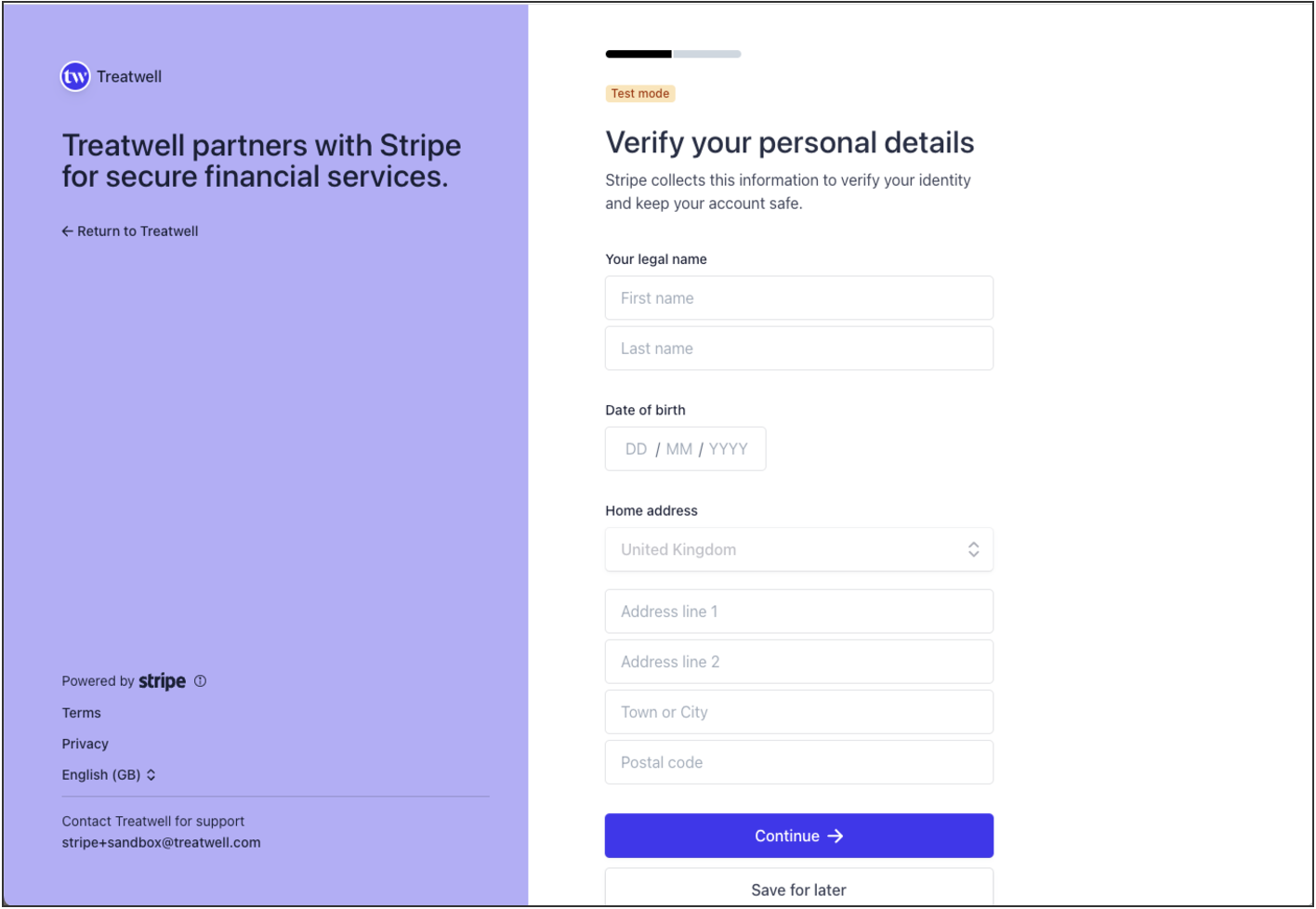
The next screen contains a form to be filled in (each field is mandatory and necessary to continue). Once you have entered all the required information, click on 'Continue'.
The last step will display all of the information previously entered. If there are any errors in the data entered, corrections can be made before confirmation by clicking on the pencil icon in the two boxes.
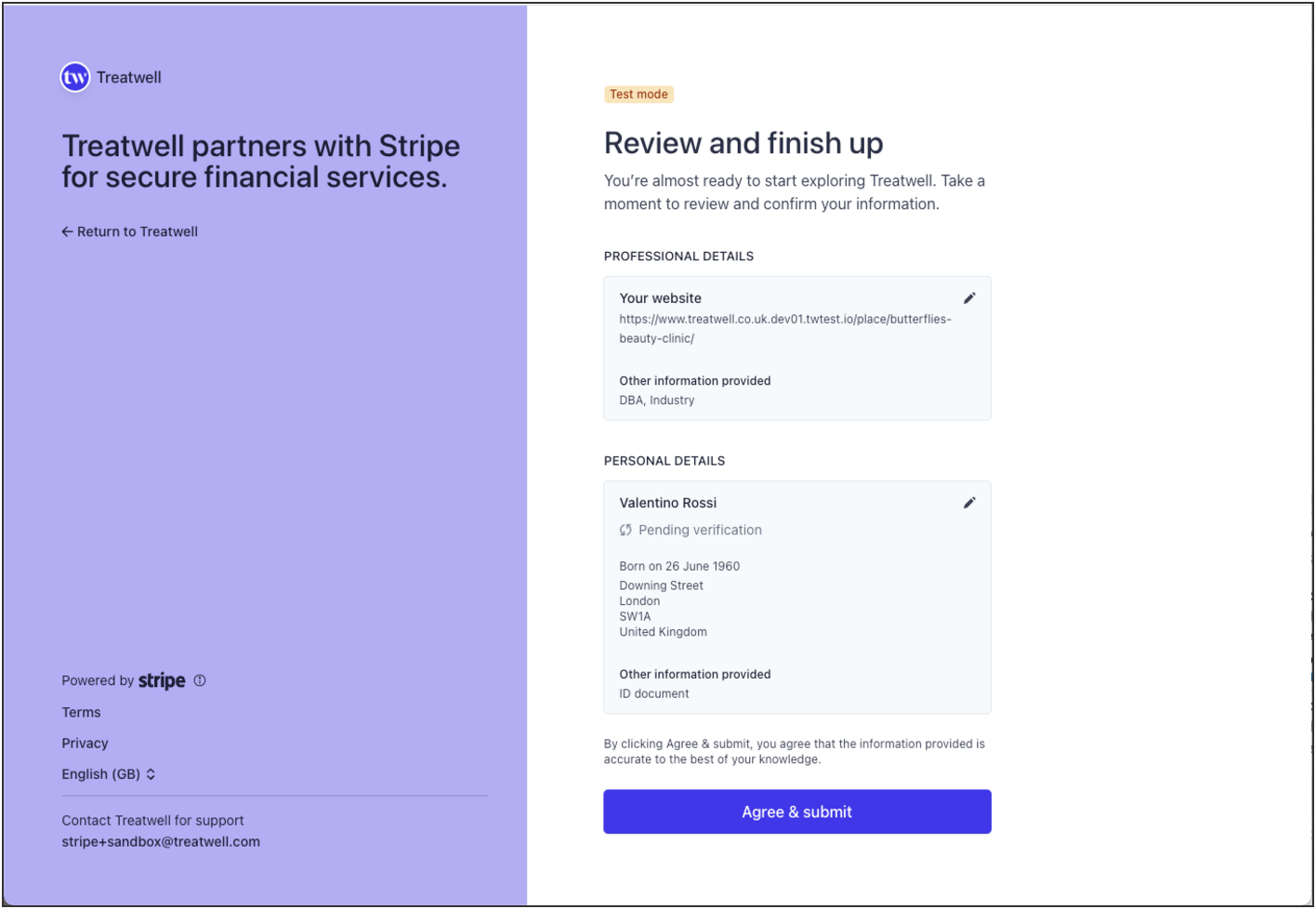
If the data is correct, click on the "Agree & Submit" button to confirm and complete the verification.
Please note: If you do not have all the information available during the procedure, you can click on the 'Save for later' button and complete the check at a later date. Information already entered will be saved automatically.
Was this article helpful?