
Keeping your menu up to date ensures that clients can easily find and book the treatments they want. Here's how you can remove and re-add services – or temporarily make them unbookable online.
Temporarily making a service unbookable online
If you don’t want clients to be able to book a particular service online (due to Government restrictions, for example), then you can make it unbookable in a few steps.
Head to Connect on desktop
Click on Menu
Find and open the service you want to edit
Click Distribution in the top right corner
Untick Sell service online
Remember to save your changes
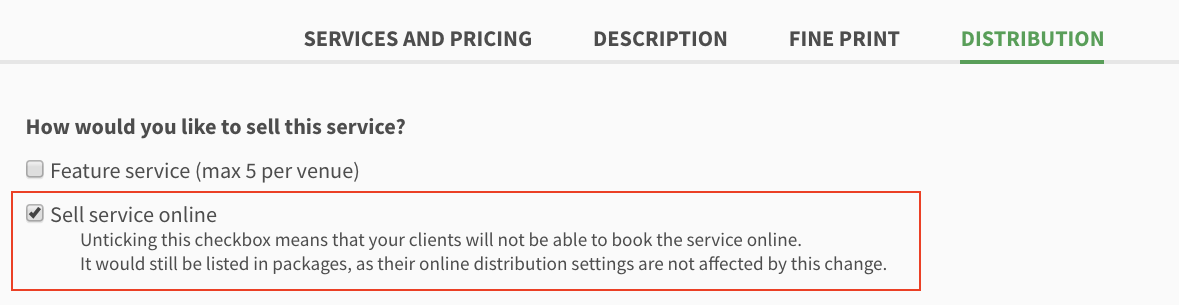
Unticking Sell service online means clients will no longer be able to book it via the booking widget, or via the Treatwell app/ website. It will still be listed in packages.
Once you’re ready to sell the service online again, simply tick the box – and you're done.
How to remove a service
You may also sometimes need to remove services that you no longer offer, which is quick and easy to do.
Go to your Menu in Connect and click on the service you want to remove
Then click on the three dots at the bottom of the service, and select ‘Archive’
The service will then move from your menu of active services into your archive. It will no longer be visible to customers.
You can have a look at your archive by clicking on the arrow next to ‘All active services’ in the top right corner of your menu. Just select ‘Archive’ from the dropdown menu.

How to re-add a service
If you want to move a service from the archive back into your live menu, simply click on it, make any necessary changes and then click on ‘Save & Publish’.
It's important to make sure at this point that the service is also assigned to any of your team members who can offer the service. If not, this service won't be bookable by your clients.

Was this article helpful?